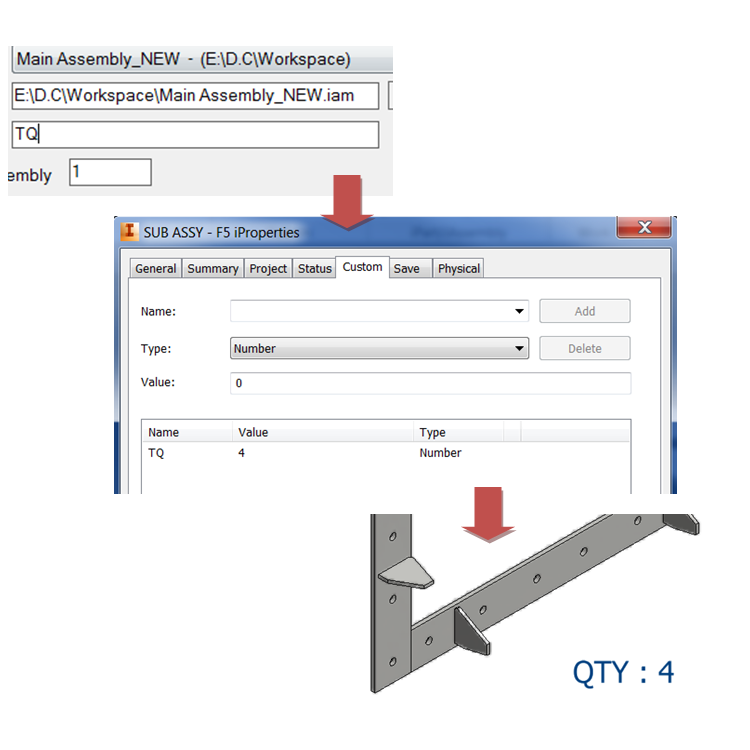
Tool computes number of occurrences (total no of part/assembly used), referenced in selected assembly. This can be assigned to Custom iproperty as per user requirement, or user can also opt only for excel report. So user will have quantity of sub assemblies along with parts for all levels.This Custom iproperty can be used as per requirements in drawings by referring custom iProperty.
This is an independent application working with inventor. User can launch it from desktop icon or program files.
Recommended – Close inventor before running this tool.

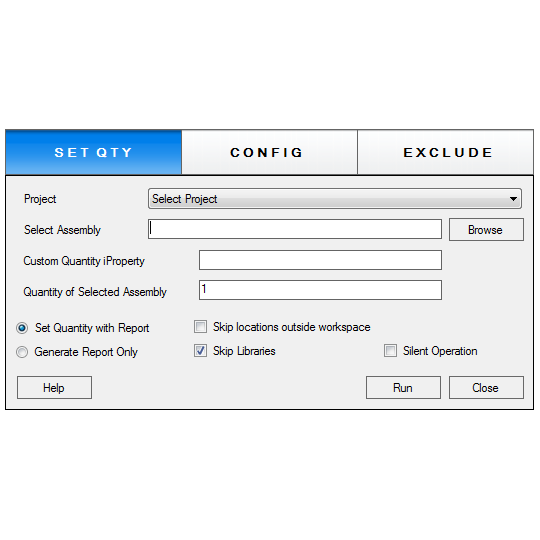
Select Project
Browse the project from the drop-down menu. It contains all projects which you already added in inventor. In case the project is not added in Inventor, user can click “Add Project” and browse the .ipj file
Select Assembly
User can specify the assembly within that project.
Tool will compute no of occurrences (total no of part/assembly used) referenced to selected assembly and fill quantity in custom iproperties of each part & assembly based on other specified options of tool.
Tool will create/update assigned custom iproperty value with no of occurrences in all referenced parts and assemblies.
Quantity of Selected Assembly
User can also enter the quantity of the selected assembly and all the related parts and assemblies will be assigned with respective multiplied values.
Set Quantity with Report
This option can be used if user wants to add value of occurrences in custom iproperty field of all referenced documents along with report.
Generate Report only
This option can be used if user only wants the report of quantities used, and not to set it in the documents.
Skip location outside workspace
Tool will only include files within the workspace.
Skip Libraries
Tool will skip all the library documents as defined in the project.
Silent Operation
Tool will not display the error messages and will execute the operation. In case of failure the document will not get the property but the operation will not be interrupted.
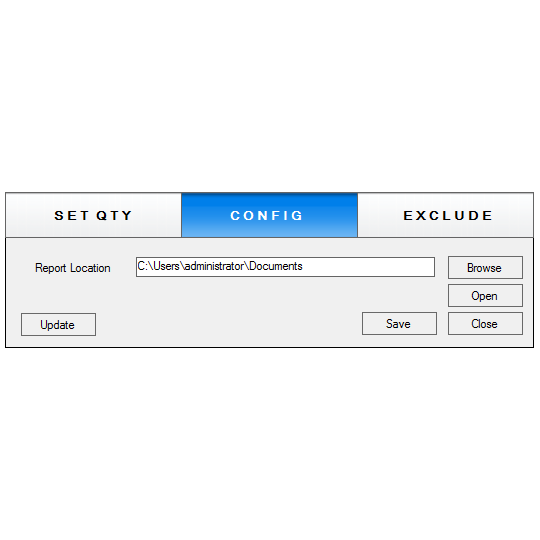
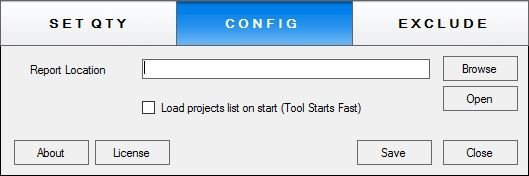
Following image displays the configuration screen. User can set the default location of the report in this dialog.

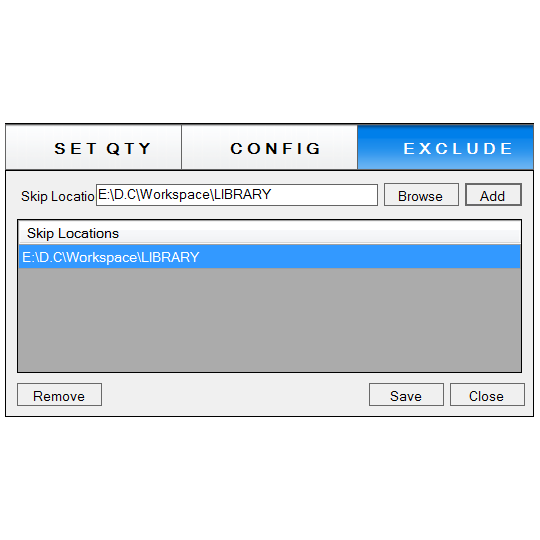
“Exclude” tab is used to add skips locations. These locations will be excluded from inserting the quantity property.

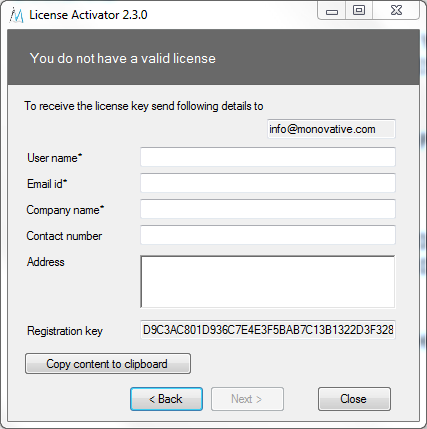
Trial or Full License is required to activate Pro (Professional) version.
This Version Keeps Excel Record of Unique Parts, Common Parts, Unique Assemblies, Common Assemblies and references.

Unique Parts: Lists all the parts which are used once only in the assembly
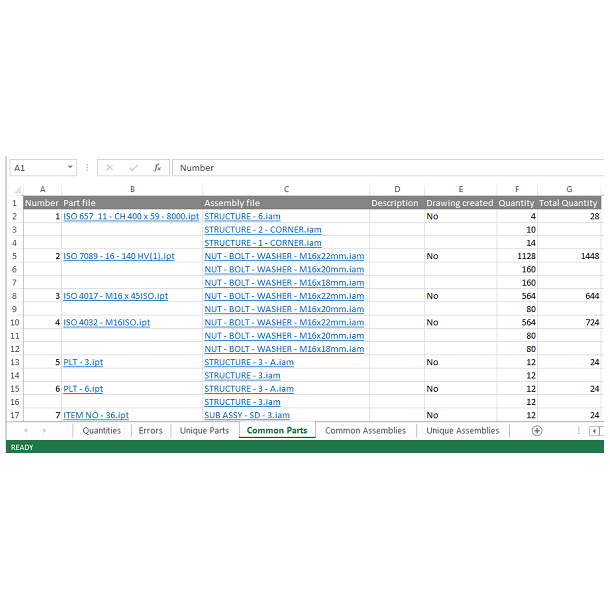
Common Parts: Lists all the parts which are referred from more than one assemblies. Report also lists all the assemblies in which the part is used.Common Assemblies: Lists all assemblies used in more than one assemblies and lists all of them
Unique Assemblies: Lists assemblies which are used only once in the any assembly






 Unique Parts: Lists all the parts which are used once only in the assembly
Common Parts: Lists all the parts which are referred from more than one assemblies. Report also lists all the assemblies in which the part is used.Common Assemblies: Lists all assemblies used in more than one assemblies and lists all of them
Unique Assemblies: Lists assemblies which are used only once in the any assembly
Unique Parts: Lists all the parts which are used once only in the assembly
Common Parts: Lists all the parts which are referred from more than one assemblies. Report also lists all the assemblies in which the part is used.Common Assemblies: Lists all assemblies used in more than one assemblies and lists all of them
Unique Assemblies: Lists assemblies which are used only once in the any assembly