Inventor Quantity Tool
$0.00
ONE-TIME LICENSE
3.6.0
CURRENT VERSION
Windows 64
OPERATING SYSTEM
2.4 MB
DOWNLOAD SIZE

OVERVIEW
Extract accurate quantities from any assembly — instantly
Inventor Quantity Tool reads your assembly structure and generates a complete bill of quantities across all levels. It handles repeated subassemblies, mirrored parts, and suppressed components — giving you a clean count without manually tallying each item in the browser.
Select an assembly, run the tool, and get a structured quantity breakdown exported to Excel or pushed directly into your ERP system — no copy-paste, no missed parts.
Where teams use it
Procurement teams that need accurate part counts for purchasing. Manufacturing planners building cut lists and material orders from complex assemblies. Engineers validating BOM quantities against design intent before release.
CAPABILITIES
What it handles for you
Four core behaviors cover the day-to-day reality of managing large, deeply-referenced Inventor assemblies.
Full reference tree autosave
Saves all referenced parts, assemblies, and drawings tied to the active assembly in one automated pass.
iLogic & external rule support
Built for workflows where rules trigger on file Open or Save events and must run across every linked document.
Automated drawing QC
Step through a sequence of drawings for quality checks without manually opening and closing each one.
Open-save-close automation
Runs the open-save-close cycle in auto mode across all referenced documents of an assembly.
Simple license activation
Trial-to-paid activation flow with a license key issued directly by the Monarch support team.
Broad version support
Works across Autodesk Inventor and Inventor Professional, versions 2013 through 2022.
DETAILS
Additional information
Current Version
3.6.0
Last Updated
19 Mar 2025
Release Date
14 Sept 2013
Language
English
Operating System
Windows 64
Download Size
3 MB
Compatible With
Autodesk Inventor (Version: 2022, 2021, 2020, 2019, 2018, 2017, 2016, 2015, 2014, 2013)
Autodesk Inventor Professional (Version: 2022, 2021, 2020, 2019, 2018, 2017, 2016, 2015, 2014, 2013)
Customer Support
info@monovative.com
CHANGELOG
Version history
3.6.0
19 Mar 2025
User to select a directory if report location is null.
3.5.9
14 Aug 2024
Added code to delete custom property and then add it.
3.5.8
13 Aug 2024
Bug fix: unspecified error on calling 'FlushToFile' (removed use of ApprenticeServer); added code to prevent dialog box while adding or updating custom property; add additional sheets in Excel report; set read-only files to false.
3.5.7
8 Aug 2024
Added code to enter description of main assembly in reference sheet; bug fix while adding custom property (removed use of ApprenticeServer).
3.5.6
4 Jul 2024
Added code to add 'Material' column and its values in 'Quantity' sheet for Monarch Internal.
3.5.5
2 Jul 2024
Added code to add values of material used for '.ipt' files in Quantity sheet.
3.5.4
28 Jun 2024
Updated the code in sheet to prevent 'Material' column in 'Quantity'.
3.5.3
30 Apr 2024
Added digital signature on all DLL.
3.5.2
10 Apr 2024
Upgraded for Inventor 2025.
3.5.1
8 Mar 2024
Bug fix: while saving Quantity Excel report.
3.5.0
8 Dec 2023
Added references tab to Excel file.
3.4.9
23 Nov 2023
Added BetterFolderBrowser for report location.
3.4.8
5 Aug 2023
Bug fix: Excel report.
3.4.7
16 May 2023
Bug fix: Excel report.
3.4.6
22 Apr 2023
Added revision number and part number in Excel report as per requirement.
3.4.5
15 Apr 2024
Added Save CSV.
3.4.4
22 Feb 2024
Updated to Inventor 2023.
3.0.0
6 Jul 2017
Added validation for report-location field.
2.9.0
16 Feb 2017
Fixed issue of Excel report.
2.4.0
9 Nov 2015
Added provision for Pro features; stability fixes.
2.0.0
18 Dec 2013
Record of unique assembly in selected assembly.
1.2.0
14 Sep 2013
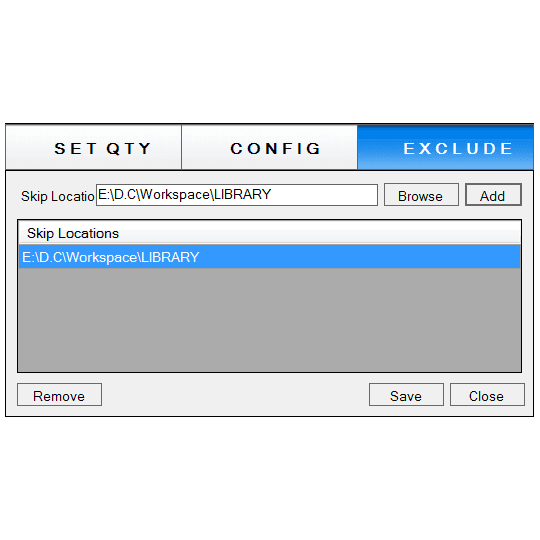
Skip location outside workspace.
LICENSING
Trial and activation, in three steps
Start your 7-day trial
Every install ships with a 7-day trial license. The license window opens automatically on first launch.
Request your license key
Submit your details to info@monovative.com, or use the in-app "Send Mail" option to request a key directly.
Activate
Enter the received key and press Activate. Installation and license management both require administrator privileges.
MORE FROM MONARCH